A project without a schedule is like a trip without a map. You may know where you want to end up, but you can easily lose time, miss deadlines and run over budget along the way. A project schedule lays out every task, who owns it and when it should be finished, so the whole team knows what to do next.
This page shares 8 free project schedule templates that you can use as a starting point for your next plan. They suit small teams, freelancers, contractors and managers who want a clear, professional layout without building one from scratch.
What Is a Project Schedule?
A project schedule is a document that lists the tasks, milestones, start dates, end dates and responsible people for a project. It turns a big goal into smaller steps that can be tracked. Project managers use it to assign work, watch progress, and keep clients and stakeholders informed.
Schedules come in different forms. Some are simple tables with a task list and dates. Others use a timeline or Gantt-style bar chart to show how tasks overlap. The right choice depends on the size and complexity of your project.
Why Use a Project Schedule Template?
- Saves time: a ready-made layout means you can start entering tasks right away.
- Keeps work organized: tasks, dates and owners sit in one clear place.
- Improves communication: team members and clients can see the plan at a glance.
- Helps meet deadlines: visible due dates make it easier to spot delays early.
- Supports better resource planning: you can see who is busy and when, which helps you balance workloads.
- Easy to update: changes are simple to make when the plan is in an editable format.
What to Include in a Project Schedule
Every schedule should answer four questions: what needs to be done, who will do it, when it is due, and what depends on what. A strong template usually includes:
- Project name and manager: so the document is easy to identify.
- Project goals: a short statement of what the project should deliver.
- Task list: each step broken into a clear, measurable action.
- Start and end dates: when each task begins and finishes.
- Duration: how many days or hours each task takes.
- Responsible person: who owns each task.
- Milestones: key checkpoints such as design approval or final delivery.
- Dependencies: tasks that cannot start until another one is finished.
- Status: not started, in progress or complete.
Project Schedule Template Samples
The samples below show different layouts, from simple task tables to timeline-style charts. Where a button is linked, it takes you to the source of that template.
Basic Project Schedule Template


Project Timeline Schedule Template
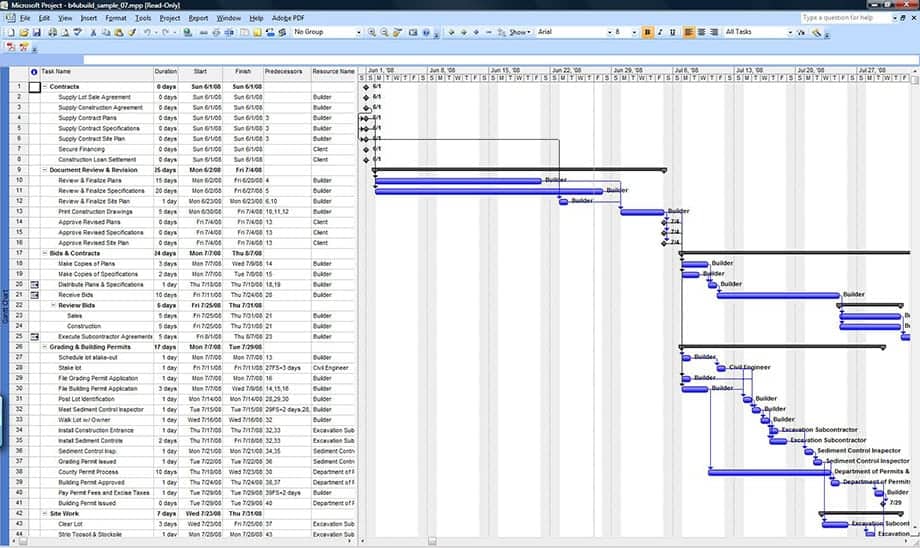
Simple Project Planning Schedule Template
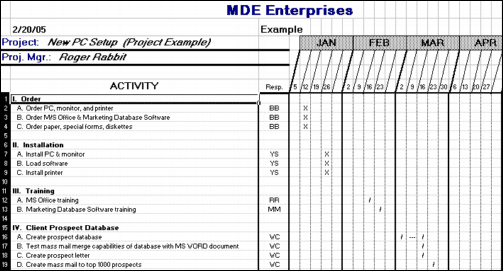
Weekly Project Schedule Template
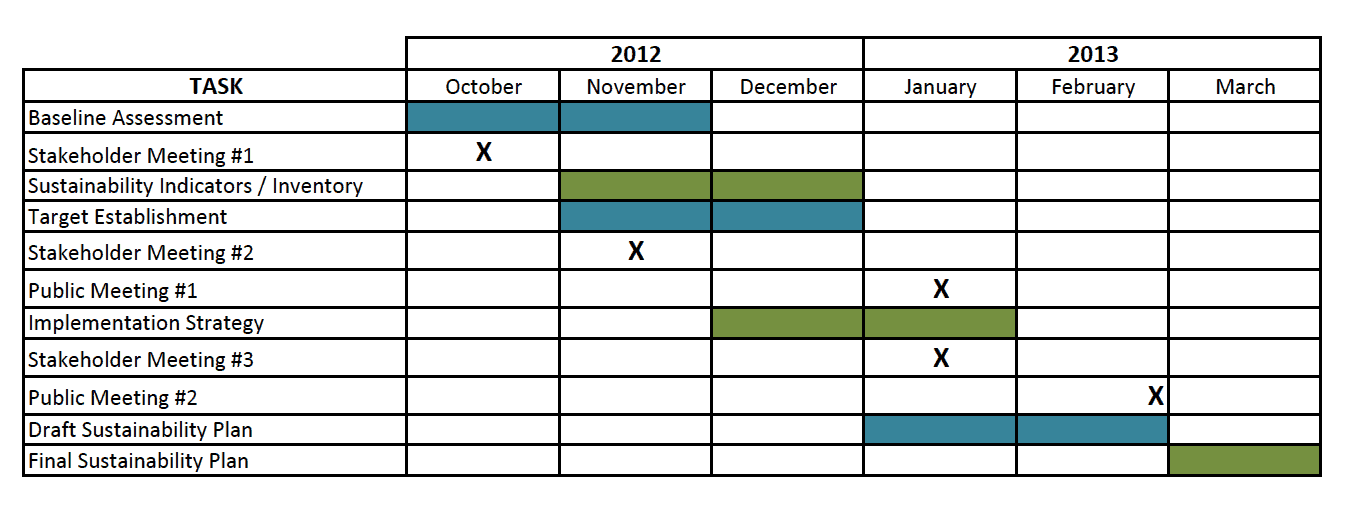
Project Task Schedule Template
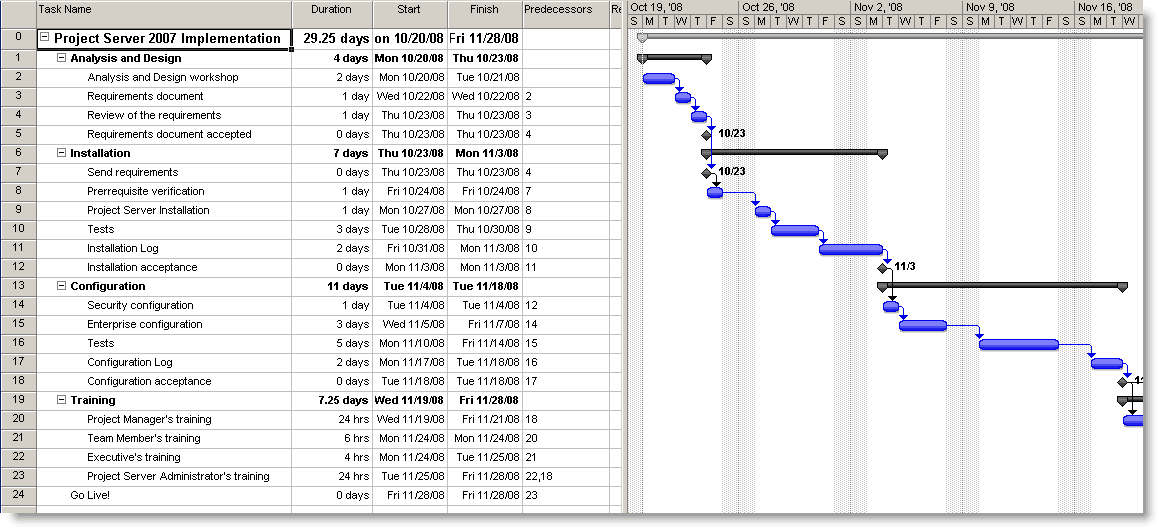
Project Milestone Schedule Template
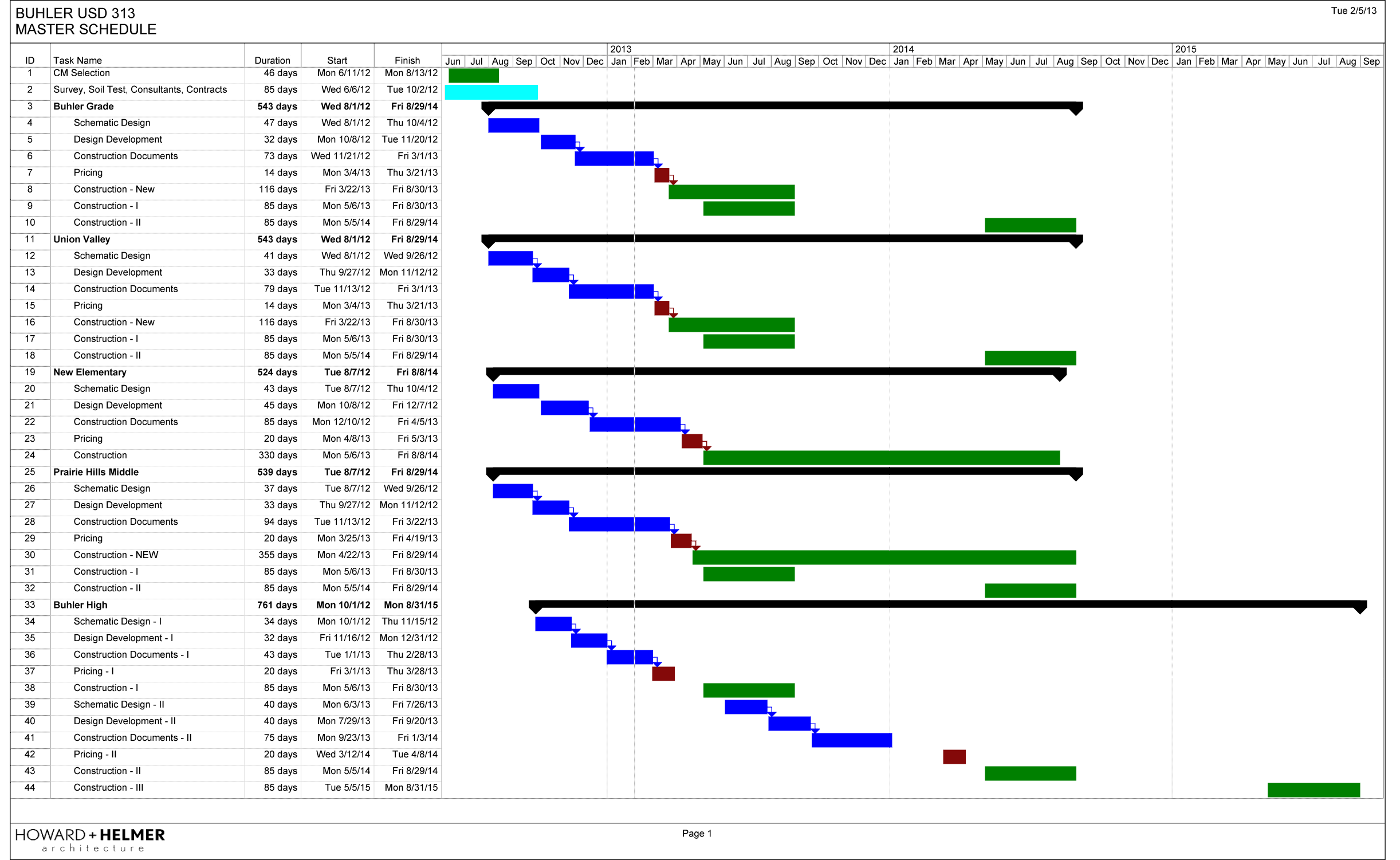
Project Gantt Chart Schedule Template
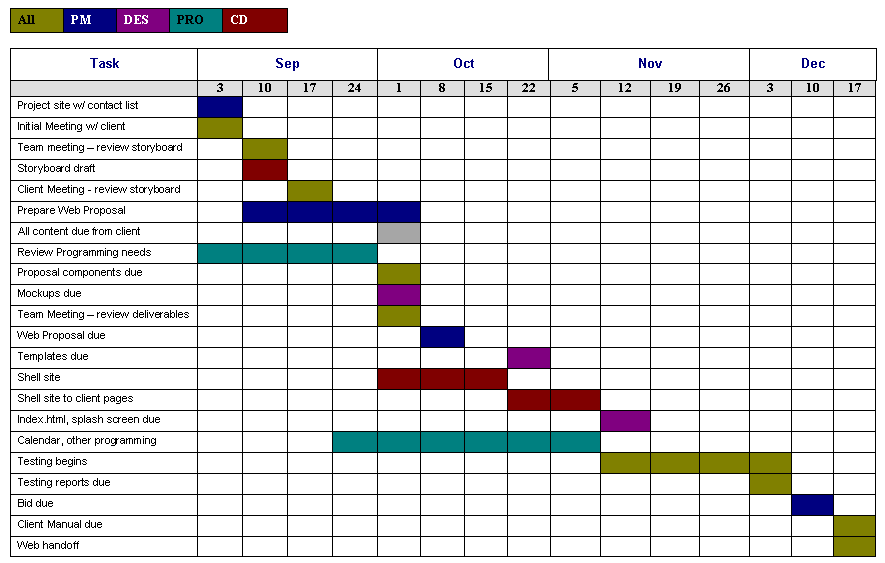
Construction Project Schedule Template
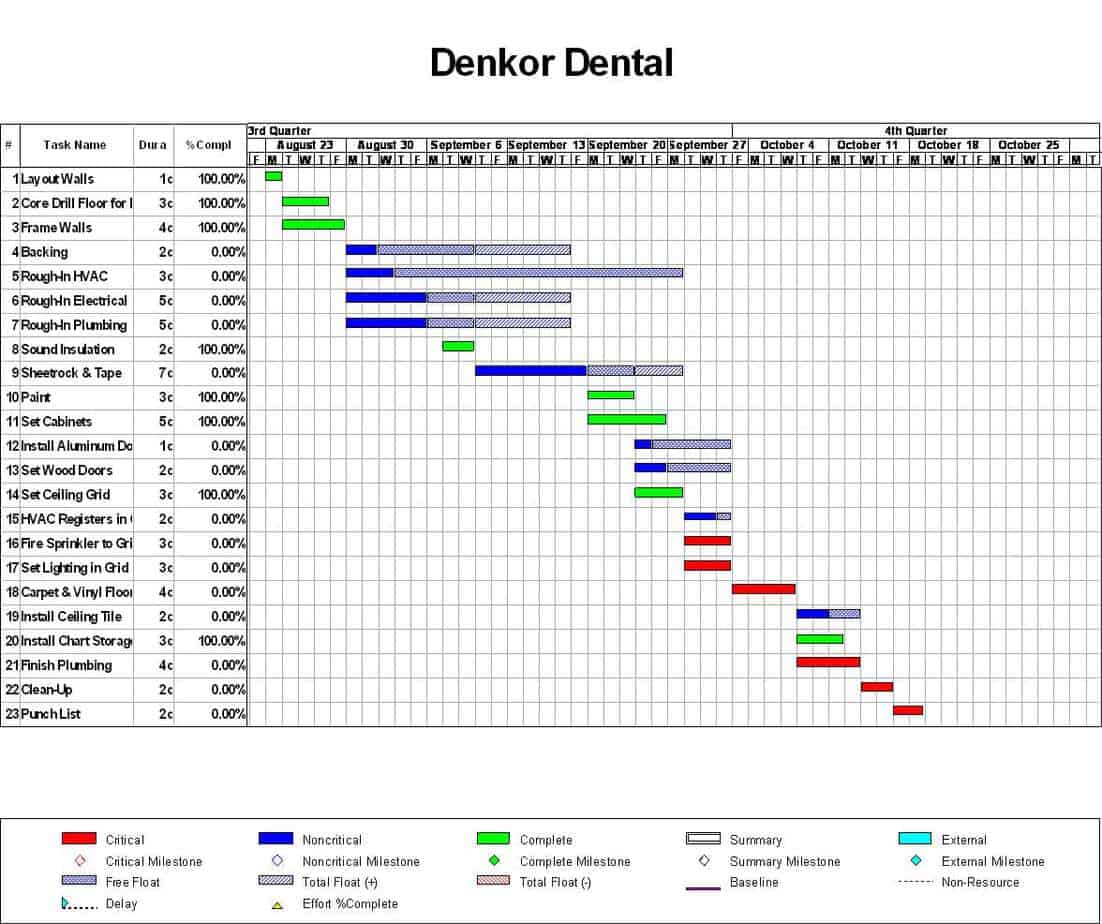
How to Create a Project Schedule Step by Step
- Define the goal and scope. Write down what the project must deliver and what is outside the scope.
- Break the work into tasks. Split the project into phases, then into smaller tasks that one person can complete.
- Estimate durations. Decide how long each task will take, and be realistic. Ask team members for input.
- Set dependencies. Note which tasks must finish before others can start.
- Assign owners. Give every task one responsible person so nothing is left unowned.
- Add milestones. Mark important checkpoints, such as approvals and deliveries.
- Choose a template. Pick a layout from the samples above that suits your project size.
- Share and update. Give the team a copy and review the schedule regularly, updating dates and statuses as work progresses.
Tips for a Better Project Schedule
- Add a buffer for unexpected delays, especially on tasks that depend on outside vendors.
- Keep task names short and specific, such as “Finalize floor plan.”
- Use color coding for status, so late or at-risk tasks stand out.
- Review progress weekly and adjust the plan rather than ignoring slips.
- Do not overload team members. A schedule that looks good on paper but ignores workload will fail.
- Save a baseline copy of the original plan so you can compare it with actual progress later.
- Communicate changes quickly so clients and team members always have the latest version.
Frequently Asked Questions (FAQs)
What is a project schedule template?
It is a ready-made layout for listing project tasks, dates, owners and milestones. You fill in your project details instead of designing a table from scratch.
What is the difference between a project schedule and a project plan?
A project plan explains the overall approach, scope, budget and risks. A project schedule focuses on timing, showing which tasks happen when and who does them.
Which software works best for a project schedule?
Many people use Excel or Word for simple schedules, while larger projects may use dedicated project management tools. The best choice is one your team can update easily.
What is a Gantt chart?
A Gantt chart is a bar chart that shows tasks along a timeline. Each bar starts and ends on its scheduled dates, making it easy to see overlaps and dependencies.
How detailed should a project schedule be?
It should be detailed enough that each task has an owner and a date, but not so detailed that it becomes hard to maintain. For most projects, tasks that take between one day and two weeks work well.
How often should I update the schedule?
Review it at least weekly. Update task status, adjust dates when things change, and share the updated version with your team.
Who should have access to the project schedule?
The project manager, team members and key stakeholders should all see the current version. Sharing it keeps everyone on the same page.
Final Thoughts
A clear project schedule keeps your team focused, your clients informed and your deadlines within reach. With 8 free templates to review, you can find a layout that suits your project, add your tasks and dates, and start tracking progress right away. Keep it updated, and it will guide your project from kickoff to finish.


You must be logged in to post a comment.